

The reliable way to check Gmail, Slack and Teams without missing a client is one pass, in a fixed order, through the filtered view each tool already has: Gmail's Important first layout, Slack's Activity view filtered to DMs and Mentions, and the Teams Activity feed filtered to Unread and @Mentions. You then merge the three short lists by hand, client first. This guide is written for founders and agency owners who answer clients across email and chat, and it also shows the point where the manual routine stops scaling.
Why the loud channel is not the important one
Each tool sorts by time, so the order you read in is set by whoever wrote last. A two line Slack DM from a client sits under a wall of channel chatter, while a newsletter lands at the top of Gmail. The fix is not to check more often. It is to look at each tool through its own "needs me" filter, once, and in the same order every time. For the cost of the switching itself, see the real cost of context-switching for founders.
When we checked the help pages on 10 October 2026, the scale of the problem was visible in the settings alone: Gmail offers six inbox types, Slack's Activity view has twelve filters, and the Teams feed has its own Unread, @Mentions and Tag mentions views. That is three separate vocabularies for the same question, which message needs me.
Step 1: Gmail, show Important first
In Gmail, go to Settings and set the inbox type. Google's help page lists the options as Default, Important first, Unread first, Starred first, Priority Inbox and Multiple inboxes. For this routine pick Important first, or Priority Inbox if you want Starred and Important and unread in separate sections.
Gmail marks messages as important from signals such as who you email and how often, which messages you open or reply to, and what you star, archive or delete. A yellow marker means Gmail thinks a message is important, and hovering over it shows why. Clicking the marker corrects Gmail, and it learns from that. Searching is:important lists everything currently marked. Spend the first minute here correcting the markers on three or four client messages, because every later pass depends on them.
Step 2: Slack, read the Activity view, not the channels
Slack's Activity view collects notifications in one place. On desktop you open the All view and click Filters. The documented filters are Unreads, DMs, Mentions, Threads, Channels, Reactions, Invitations, Apps, Reminders, VIP and Cleared notifications, plus a filter for a specific channel or sidebar section. VIP and the channel and section filter are available on paid plans only.
For clients, the useful ones are DMs, Mentions and Threads, because Threads covers replies in threads you follow and threads where you were mentioned. Invitations is easy to forget and matters for agencies: it lists channels you were added to and new Slack Connect invitations, so a client who invites you into a shared channel shows up there. Choose the dense layout (View as dense) if you want an inbox style list that shows more entries per screen.
Step 3: Teams, filter the Activity feed
Microsoft describes the Teams Activity feed as a summary of what has happened across Teams, including chat and channel @mentions and meeting invites and cancellations. Use the Unread button and the @Mentions filter, and look at Tag mentions if your client team uses tags. The More filters menu adds Replies and Reactions.
One limit to know: notifications stay in the feed for 30 days and then expire. A client chat you meant to answer last month can quietly leave the feed, so do not treat the Activity feed as a to do list.
Step 4: Merge the three lists in a fixed order
With three short lists in front of you, rank them by one rule, not by tool. A rule that works for agencies: first anyone who pays you or is about to, then anything with a deadline or a question addressed to you, then everything else. Answer in that order, even if it means jumping from Slack to Gmail to Teams and back. Do this pass at fixed times, for example at the start of the day, after lunch and before you close, and stay out of the raw channel list between passes.
Where the manual routine breaks
The routine works for one person with a handful of clients. It starts to fail for three reasons. You do the merge in your head every time, so the ranking is only as good as your attention at 4 pm. Each tool has its own idea of importance, and Gmail's markers say nothing about a Slack DM. And the filters that make Slack useful for clients, VIP and per channel views, depend on your plan. If you want the long version of the problem, the founder guide to inbox overload covers the five step system, and what a unified inbox is explains the category.
Where Nolario fits
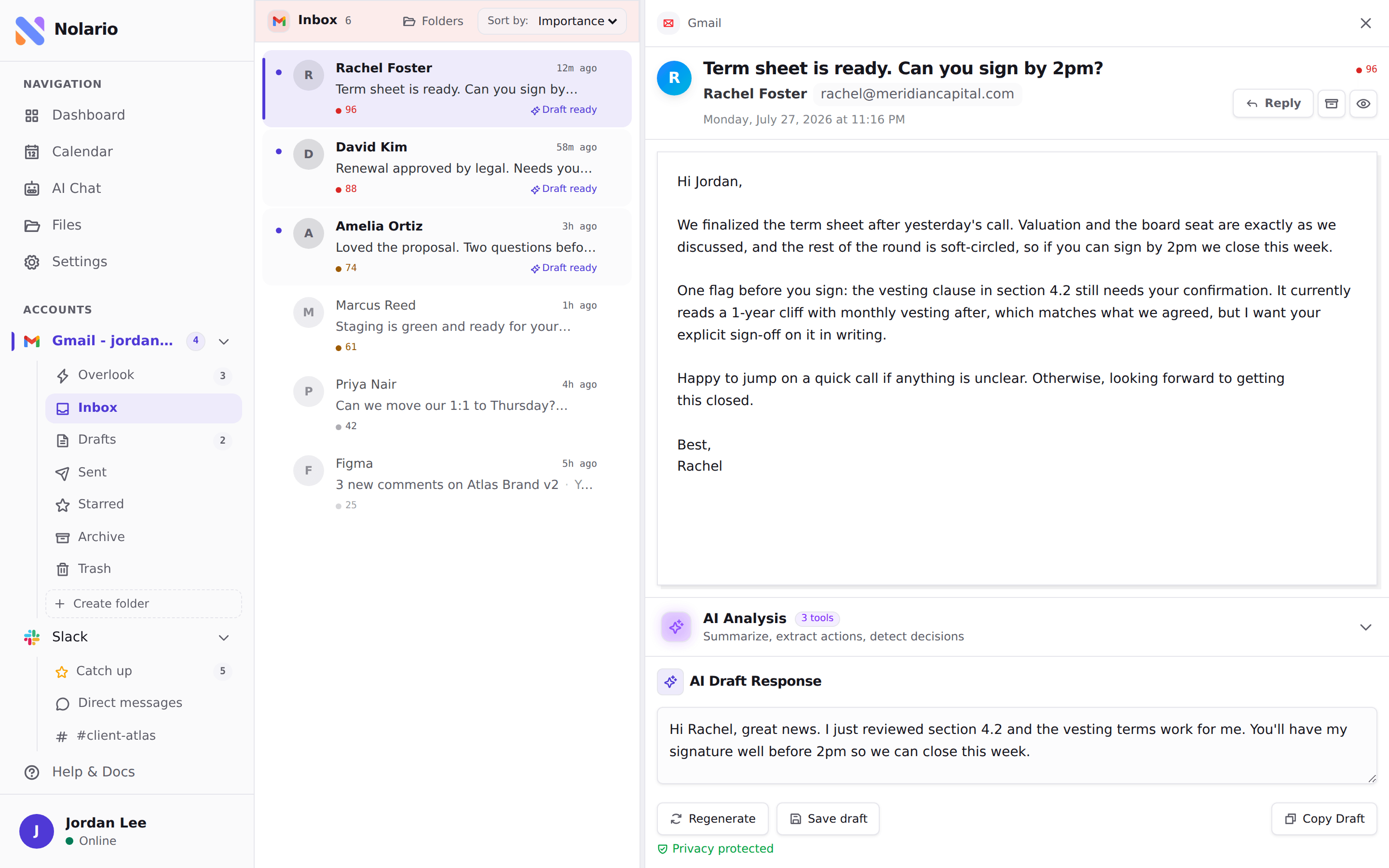
Nolario automates step four. It pulls Gmail, Outlook, Slack, Microsoft Teams and Google Calendar into one feed, scores every item for importance and ranks the feed so the message that needs you is at the top, whichever channel it came from. It drafts replies in your voice, and it never sends a message for you: you press send. Message content is scrubbed of personal data on our side before a model sees it.
It has limits. Teams chats only work for work and school accounts, because Microsoft Graph does not expose chats for personal Microsoft accounts, and Nolario says so when you connect. It is a desktop web app, it has no shared queue or ticket assignment, and access is by waitlist. If your urgent work lives in a single mailbox, stay with Gmail's own layout or an email only client. See the best AI assistants for Gmail, Slack and Teams for the alternatives, and the integrations and pricing pages for what is connected today.
