

The way to keep Outlook and Teams from burying a deadline is to give each one a filtered view and look at both on a fixed schedule: Focused Inbox in Outlook, and the Teams Activity feed filtered to Unread and @Mentions. Both have limits that matter for a managing director. Focused Inbox does not work on shared mailboxes, and Teams drops notifications after 30 days. This guide is for people who run a company out of Outlook and Teams and want a routine that does not depend on remembering.
Why the deadline is rarely the loud message
An authority, a bank or a key client rarely writes in capitals. The message that carries a date arrives between newsletters in Outlook, or as one line in a Teams chat that scrolls away under channel traffic. The cure is not to read more. It is to have each tool show you its own version of the important messages, and to look at both in the same order every day. For the same routine across Gmail and Slack, see how to check Gmail, Slack and Teams without missing a client.
Step 1: Outlook, sort Focused and Other
Microsoft's help page describes Focused Inbox as two tabs: important mail goes to Focused, and the rest goes to Other, which stays reachable but out of the way. Automatically generated and bulk mail is filtered out of Focused. To correct it, select a message and choose Move, then Move to Other inbox, or Always move to Other inbox to send all future mail from that sender there. Spend the first week correcting it, because the sorting is only as good as those corrections.
When we read the page on 13 October 2026, two limits were stated plainly. In Outlook for Windows, Focused Inbox is available only for Microsoft 365, Exchange and Outlook.com accounts. And with a shared mailbox it will not work, by design. If the mail that carries your deadlines lands in a shared mailbox, this step does nothing for it.
Step 2: Teams, read the Activity feed with filters
Microsoft describes the Activity feed as a summary of what has happened across Teams, including chat and channel mentions and meeting invitations and cancellations. Use the Unread button to see only unread items and the @Mentions filter to see only the messages where you were mentioned. The Tag mentions button covers tag mentions, and More filters opens the rest.
The catch is retention: notifications remain in your feed for 30 days and then expire. Do not treat the feed as a record of what is still open. If a message needs an answer, answer it or move it somewhere you will see it.
Step 3: Check both on a schedule, deadline first
Pick two or three fixed times a day. At each, open Focused, then Teams filtered to Unread and @Mentions, and ask one question of every item: does it carry a date or a person who pays or regulates us? Answer those first, in whichever tool they sit. Stay out of the raw lists between checks.
Where the routine breaks
You do the merge in your head, so the quality of the ranking depends on your attention at the end of a long day. Each tool judges importance on its own terms, and Outlook's sorting knows nothing about a Teams chat. The new Outlook view that lists several accounts together is covered in Outlook's new unified inbox: it helps with several mailboxes, not with chat. For AI help inside Outlook itself, see the best AI email assistants for Outlook.
Where Nolario fits
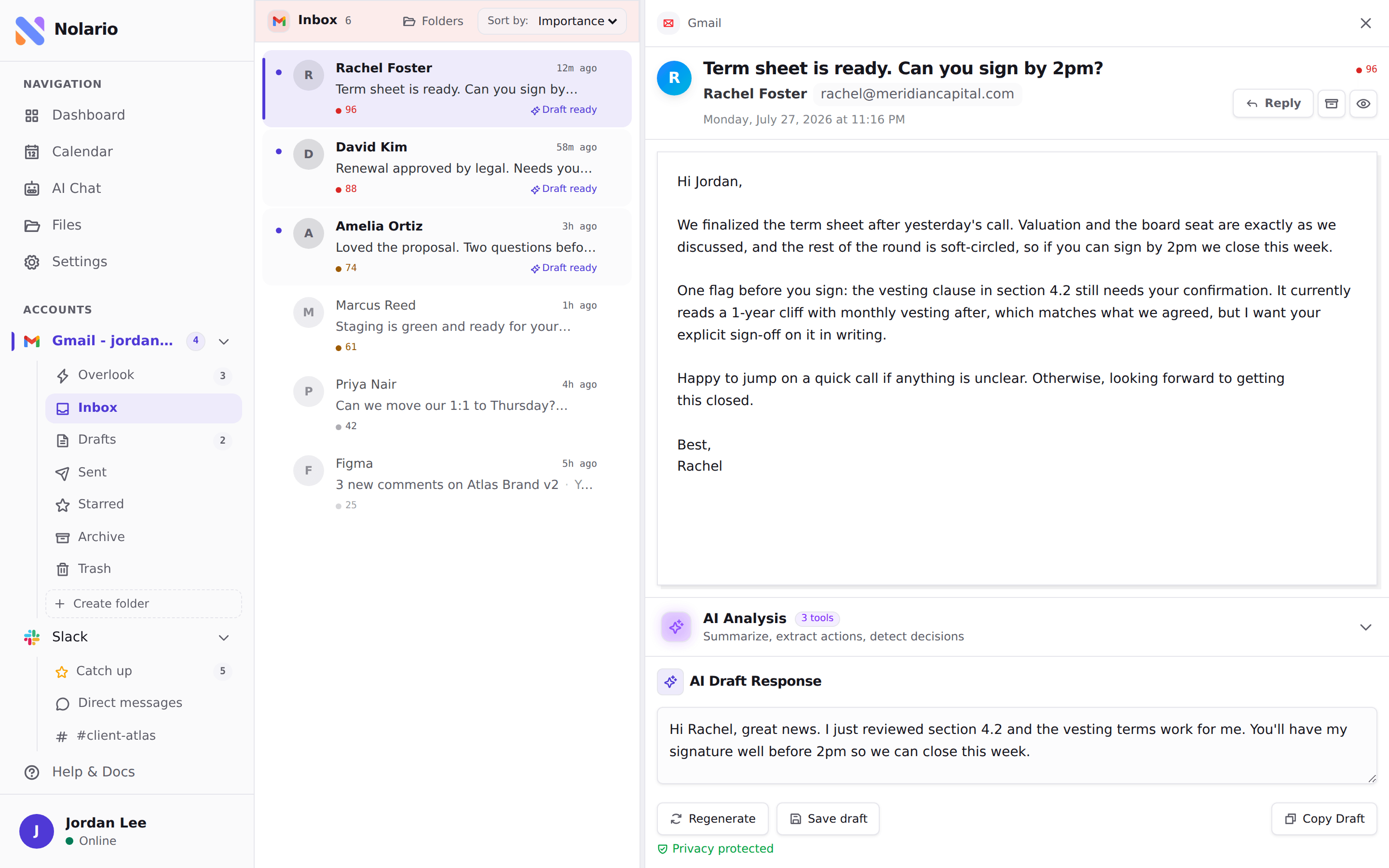
Nolario does the merge. It pulls Outlook, Gmail, Slack, Microsoft Teams, Google Calendar and any IMAP mailbox into one feed, scores every item for importance and ranks it, so the message that carries a deadline is at the top whichever tool it arrived in. It drafts replies in your voice and never sends one for you: you press send. Message content is scrubbed of personal data on our side before a model sees it.
It has limits. Teams chats only work for work and school accounts, which fits a company account and rules out a personal one. It is a desktop web app, it has no shared queue or assignment, and access is by waitlist. If your whole day is one Outlook mailbox, Focused Inbox is enough. See the integrations and pricing pages, or what a unified inbox is.
