

A client replies, nothing shows up in your Inbox, and a day later you find the message in Junk. Microsoft's classic Outlook page says the filter moves suspected spam to Junk instead of stopping delivery, so the fix is to tell Outlook which senders to trust and to check Junk on a schedule. This post gives the steps from Microsoft's own support pages for each version of Outlook, the places where those pages stop, and a short check routine.
Why does Outlook put a client's email in Junk?
In classic Outlook, Microsoft says the filter moves suspected spam instead of stopping it, and a legitimate client message can end up there too. Microsoft's support page on the Junk Email Filter in classic Outlook, page dated May 4, 2026, says the filter "doesn't stop delivery of junk email messages" but moves suspected spam to the Junk Email folder.
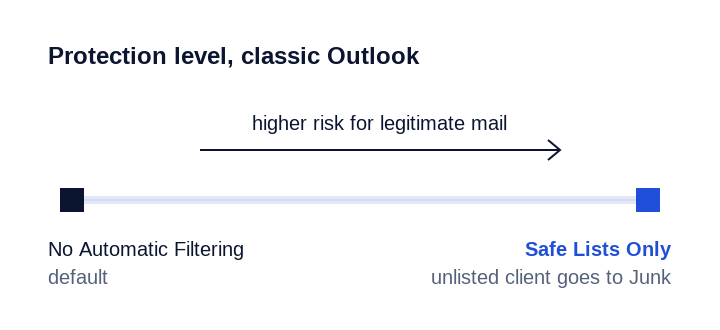
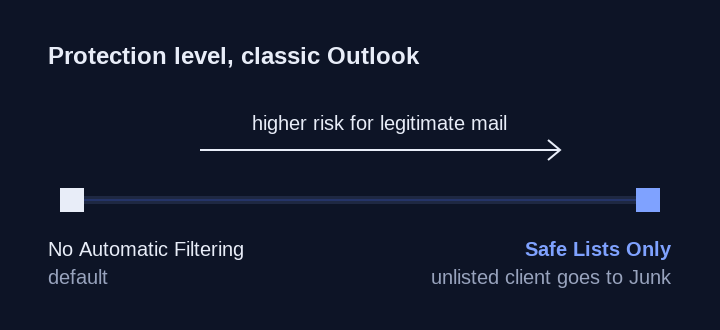
Microsoft's page on changing the level of protection in the Junk Email Filter adds that the higher you set the protection level, the greater the risk that some legitimate messages are moved to Junk. The pages we read do not explain why a given client's message was flagged. The classic page only names general factors the filter weighs, such as the time a message was sent and its content.
Which Outlook are you using, and does it change the steps?
Yes, the instructions differ by version. Microsoft's classic Outlook page states that its steps do not apply to new Outlook for Windows, so check which one you have before you click anything. New Outlook and Outlook on the web share one set of steps on Microsoft's page.
| Feature | Get the message out of Junk | Keep the sender out of Junk | Not covered on the pages we read |
|---|---|---|---|
| New Outlook and Outlook on the web | No Not junk path on the pages we read | Settings > Mail > Junk email > Add safe sender | Rule steps, and whether an admin filter still applies |
| Classic Outlook | Home > Report > Not Junk, or move the message back to the Inbox or another folder | Safe Senders List, entry via Home > Block > Junk E-mail Options | A click path for adding a sender, and whether an admin filter still applies |
How do I get a client's email out of Junk in classic Outlook?
Select the message, then choose Home > Report > Not Junk. Microsoft's classic page also describes moving the message back into the Inbox or into another folder.
Microsoft's classic Outlook page does not apply to new Outlook for Windows. On November 28, 2026 we checked Microsoft's "Filter junk email and spam in Outlook" page, and it did not mention a Not junk button for new Outlook or Outlook on the web. So we cannot give you a click path for rescuing a message there. Open the message in Junk, read it, and note the sender's exact address for the next step.
How do I keep a client out of Junk in new Outlook and Outlook on the web?
Add the client to your safe senders list. Microsoft's support page "Filter junk email and spam in Outlook", page dated December 15, 2025, says messages from addresses or domains on that list won't get moved to your Junk Email folder.
- Open Settings > Mail > Junk email.
- Under Safe senders and domains, select Add safe sender.
- Enter the email address (or domain).
The page gives no step for a message that is already sitting in Junk, so look there for the client's earlier mail as well.
How do I keep a client out of Junk in classic Outlook?
Put the client on the Safe Senders List, and make sure your filter level is not set to "Safe Lists Only". Microsoft's classic page says addresses and domain names on the Safe Senders List are never treated as junk email, regardless of the content of the message.
The levels are under Home > Block > Junk E-mail Options, in the Delete group. At Safe Lists Only, Microsoft says, any message that isn't from someone on your Safe Senders List (or to a mailing list on your Safe Recipients List) is classified as junk. A client who is not on your list lands in Junk at that level. The pages we read describe the lists and the entry point but give no click path for adding a single sender, so we do not invent one.
Should I add the client's address or the whole domain?
Add the exact address. The new Outlook page accepts either an address or a domain, but the classic Outlook page, page dated May 4, 2026, says that, by design, safe domains are not recognized by default in Exchange Online or in Exchange Online Protection.
The two pages do not reconcile this, so the specific address is the safer entry. If several people at the client write to you, add each of their addresses. The same classic page says that for Exchange accounts the server also uses the filter lists to evaluate messages, so the Outlook app is not the only place the decision gets made. It does not say whether an admin or tenant filter can still move a listed sender's message. If you manage the mailbox for a company, ask your admin.
How long does Outlook keep mail in Junk?
Thirty days on the page for new Outlook and Outlook on the web, with a caveat. That page says junk email is retained for 30 days, then automatically deleted and not recoverable. The sentence appears in the "Block senders" section and is not worded as a general rule for the folder. No retention period is given for classic Outlook or for accounts with an admin policy.
Treat 30 days as the figure on one page, not a promise for your account. If that limit applies to your mailbox, a client reply left unseen in Junk past it is deleted for good.
How do I check Junk without missing a client reply?
Look at it on a fixed schedule. Microsoft's classic page says it is a good idea to regularly review the Junk Email folder for legitimate messages that were incorrectly classified as junk. The pages we read name no quicker method, such as a search or a folder view, so the routine below is our suggestion, not Microsoft's.
- Pick one weekly slot for Junk, for example as part of your weekly email review.
- Scan sender names for clients and prospects only, and open anything you recognize.
- Rescue what belongs (classic: Not Junk) and add the sender's exact address to safe senders.
- Set a sender alert for the clients who matter, as in getting notified when a client emails, so you hear about their mail when it does reach the Inbox.
If the message is in neither Inbox nor Junk, these pages do not cover it. The Focused Inbox post covers the Focused and Other split, and blocking a sender covers where blocked mail goes.
What do Microsoft's pages leave out?
They leave out a Not junk path for new Outlook, a click path for adding a Safe Senders entry in classic Outlook, and whether an admin filter overrides your list. That is what we found in the three Microsoft Support pages we read on November 28, 2026: the junk-filter page for new Outlook and the web, the classic Outlook overview, and the protection-level page.
They also give no steps for a rule that keeps one sender out of Junk, so we give none here. For rules in general, see setting up priority rules in Gmail and Outlook. The same page that names "What if I can't edit a sender or domain on the safe?" has no answer under that heading in the text we read.
For the wider problem of client mail scattered across channels, our inbox overload guide for founders sets out a routine.
Before you try another inbox tool
Two objections are fair here, and both have short answers. The first is privacy. Nolario scrubs message content of personal data before anything reaches an AI provider, and it never sends a message by itself. It drafts, and you press send.
The second is "yet another tool". Nolario connects the accounts you already have (see integrations), and nothing moves out of them. It does not replace the Outlook settings described above. You still set Safe senders and review Junk in Outlook itself.
Where Nolario fits
Nolario pulls Outlook into one feed with Gmail, Slack, Microsoft Teams and Google Calendar, scores every message for importance and ranks the feed so the important thing is at the top. It also drafts replies in your own voice.
It does not change or replace Outlook's junk filter or your Safe Senders list, so the steps above still apply. Check the Junk folder in Outlook as described. Nolario is a desktop web app with no mobile app, and access is by waitlist.
