

Teams is adding a block called "What's happening across your organization" to the Activity feed, and the question that matters is whether you can switch it off. The short version: the section has no switch of its own, an admin limits it through the Communities and Storylines settings, and Microsoft's pages show no per-user toggle for it. A note on sourcing: we can reach Microsoft's Message Center post MC1536058 only through the public mirror at mc.merill.net, so we cite it as mirrored there and cross check it against Microsoft Learn and Microsoft Support.
What is "What's happening across your organization" in the Teams Activity feed?
It is a new section added beneath community and storyline notifications in the Teams Activity feed, not a standalone feed. Microsoft's Message Center post MC1536058 (mirrored on mc.merill.net, dated November 3, 2026) says it helps people discover content beyond their immediate communities, including posts from leaders and official communities.
Each notification can show up to five relevant posts in a scrollable view, according to the same post. The Microsoft Support page (updated November 3, 2026) places it below the post when you open a community or storyline notification. You can react to or comment on posts from there, and a Join community button appears only for communities you are not already in. The Message Center post also mentions following colleagues directly from the notification.
The sources leave two things open. Microsoft does not explain how it picks the "relevant" posts or how leader posts are identified for this section. And no page we read says whether the section changes banners, badge counts or unread counts.
When does the organization section roll out in Teams?
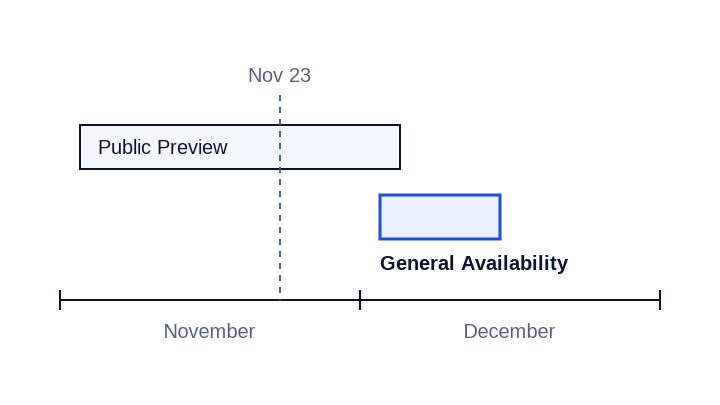
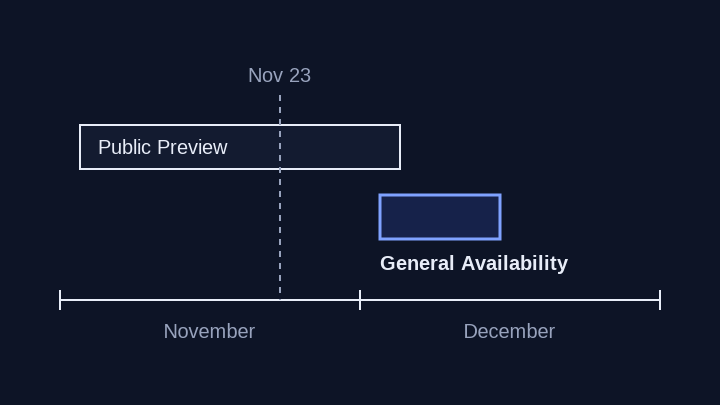
Microsoft's Message Center post MC1536058 gives two worldwide windows: Public Preview from early November 2026, then General Availability in December 2026. As of November 23, 2026 the preview window is open, so some tenants may already see it and others will not yet.
- Public Preview (worldwide): starts early November 2026, expected to complete by early December 2026.
- General Availability (worldwide): starts early December 2026, expected to complete by mid-December 2026.
- Who: all users licensed for Microsoft Teams and Viva Engage. Microsoft Learn says Engage experiences in Teams are not available for EDU tenants or for special clouds such as GCC and GCC-H.
Microsoft states only "early" and "mid" months, never exact days. We also did not open the Microsoft 365 Roadmap, so we cannot give a Roadmap ID. The Microsoft Learn page (updated November 3, 2026) still says Engage communities in Teams is in public preview while storylines are generally available. That note may predate the November update, and we cannot tell which is current. For this section, the Message Center post is the only source with dates.
Can you turn off What's happening across your organization?
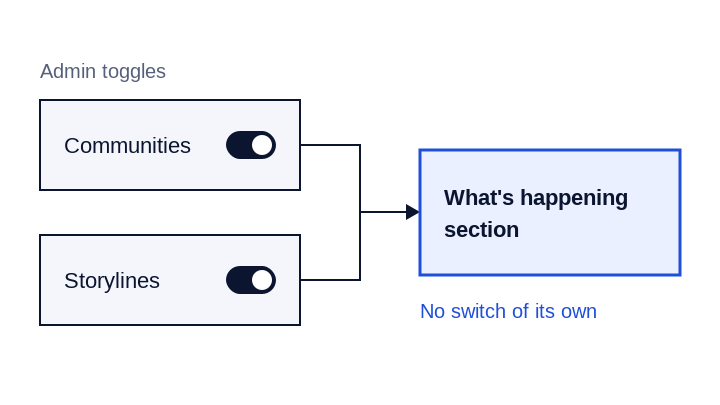
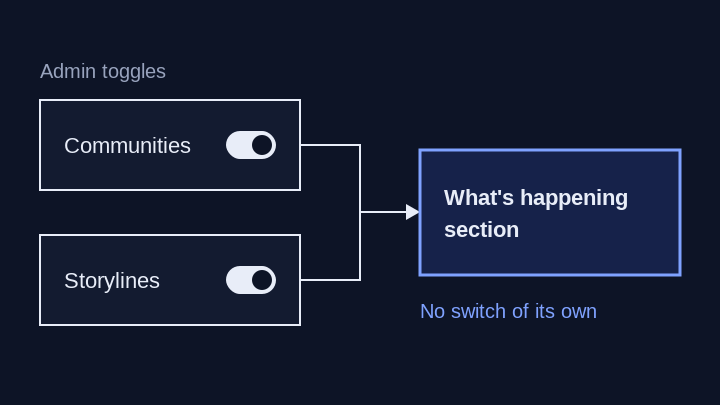
Not by itself. Microsoft Learn says: "What's happening across your organization doesn't have a separate setting." An admin keeps community content out of it by turning off the Communities setting, and keeps storyline content out by turning off the Storylines setting.
Learn says both are enabled by default across an organization, and each can be disabled independently in Teams. The path it gives:
- Open the Teams admin center.
- Go to Settings & policies, then Messaging settings.
- Find the Viva Engage section.
- Switch the Communities and/or Storylines toggle off.
If Storylines is disabled in the Viva Engage admin center instead, Learn says the experience is disabled in both Viva Engage and Teams. These switches control the whole communities and storylines experiences in Teams, so using them is a bigger step than hiding one section. That is our reading, not a Microsoft statement. Microsoft also does not say outright what the section shows if only one of the two is off. Its wording implies the other type of content would still appear.
The Message Center post itself does not describe turning the section off. It recommends that admins verify Communities and Storylines are enabled in the Teams admin center if the experience would benefit their network.
What can you do as a user if your admin keeps it on?
Microsoft's pages show no per-user switch for this section. We looked for one in the three pages we read on November 23, 2026, and found none. The nearest user-level statements concern communities, not this section.
The Microsoft Support FAQ says: "There is no switch to turn off communities for yourself," though you can hide all communities in your navigation. Support also says you can adjust Engage notifications under More, then Notification settings, in the "Communities and storyline" app. No source says that setting changes what the organization section shows.
| Feature | Tenant admin | Individual user |
|---|---|---|
| Separate switch for the section | None, per Microsoft Learn | None found in Microsoft's pages |
| Turn off Communities | Yes, Teams admin center, Messaging settings | No switch for yourself |
| Turn off Storylines | Yes, in Teams or the Viva Engage admin center | Not stated |
| Hide communities in navigation | Not stated | Yes |
| Adjust Engage notifications | Not stated | Yes, Notification settings |
Our suggestion for a managing director, in order:
- Ask your Teams admin whether Communities and Storylines are on, and whether leadership wants them on. Both are on by default.
- Hide communities in your navigation if you do not use them.
- Open Notification settings and review the "Communities and storyline" app, knowing that Microsoft does not say it affects this section.
- Protect the messages that matter with Teams' own controls. Our guides to Teams notification settings for channels, presets and pause and to hiding, muting and marking chats as unread cover that.
Does the section push client messages down in the Teams Activity feed?
From Microsoft's description, it is not a new row among your client messages. It sits beneath community and storyline notifications, inside the Activity feed. Microsoft does not say whether it changes banners or badge counts, so we cannot say it competes with a client chat there.
The effect is more general: another source of posts, including those from leaders and official communities, now lives in the same app where client chats arrive. If a deadline or a client question has been slipping between tools, see how to keep Outlook and Teams from burying a deadline and what moves where in the Teams muted chats and meeting chats sections.
Where Nolario fits: can it keep client chats on top?
Partly, and only for messages. Nolario pulls Outlook, Gmail, Slack and Microsoft Teams messages into one feed, scores each item for importance from 0 to 100 and ranks the feed, so a client chat is judged on importance, not on what Teams shows in its own Activity feed.
It does not change Teams settings or admin policies, so it cannot turn this section off. We also do not claim it reads Viva Engage community posts or this section. Teams chats work only for work and school accounts, because Microsoft Graph does not expose chats for personal Microsoft accounts, and Nolario says so when you connect. It never sends a message for you, it only drafts, and it is a desktop web app with no mobile app. Access is by waitlist.
For the wider problem of messages spread across channels, start with the founders' inbox overload guide, see what a unified inbox is, compare the best unified inbox apps, or check the integrations page for what Nolario connects to.
