

Microsoft already gives Teams admins a switch for external notetaker bots. A second one, an allow list, is on the roadmap with the GA date "January CY2027". The two are easy to confuse, and the pages that describe them disagree with each other in two small places. This post separates what you or your IT admin can set today from what Roadmap 580451 promises, and it names every point the pages leave open. Otter and Fireflies are examples of the bots we mean. We did not read their help pages, so nothing here says how to stop them from their side.
We read three Microsoft pages on November 25, 2026: the Learn page on managing external bots, the Learn page for the Set-CsTeamsMeetingPolicy cmdlet and Roadmap item 580451, which we read as text on a public mirror, mc.merill.net. We did not test anything in a tenant, so everything below comes from the documentation.
Can you block AI notetaker bots in Teams meetings today?
Partly. An admin can set a meeting policy that blocks detected external bots or makes them wait for approval, but Microsoft says detection is incomplete. If you are not the admin, forward this section to whoever is.
Microsoft's page on managing external bots, last updated November 24, 2026, says admins can configure meeting policies "to require explicit approval before detected bots can join or to automatically block detected bots from joining meetings." In the Teams admin center you open Meeting policies and, under Meeting join & lobby, find Manage external bots and their access to meetings. In PowerShell the same setting is the parameter -ExternalBotAccessMode of Set-CsTeamsMeetingPolicy.
The setting applies to meetings hosted by users assigned the meeting policy. It can cover the whole tenant or only certain users or groups. The host's policy decides, whatever policy the guests have. If you are a managing director who hosts customer calls, your own policy is the one that counts for your meetings.
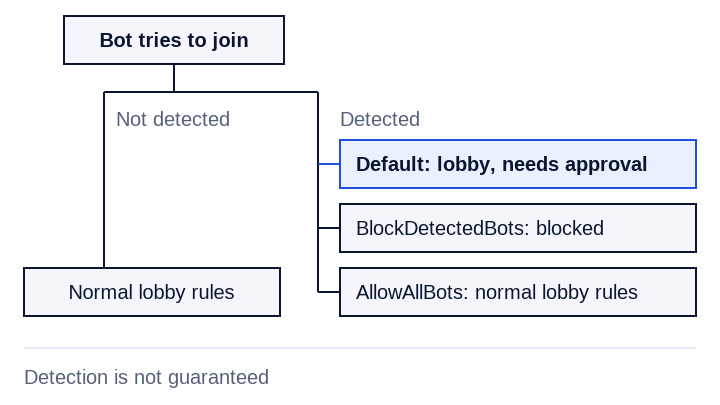
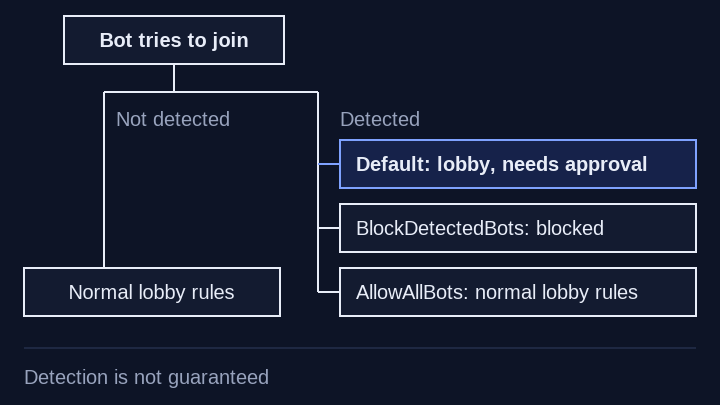
The same page states the limit: "Some bots may not be detected and may continue to join meetings according to existing meeting access settings." Microsoft does not publish which signals it uses. Expect fewer bots, and no guarantee.
What do the ExternalBotAccessMode values do?
There are three values, and the default sends detected bots to the lobby instead of blocking them. Microsoft's cmdlet page, updated November 12, 2026, describes them as follows.
| Feature | RequireApprovalWhenDetected | BlockDetectedBots | AllowAllBots (or AllowBots) |
|---|---|---|---|
| What happens to a detected bot | Enforced to the meeting lobby, regardless of the lobby setting of the meeting; needs approval | Blocked from joining meetings hosted in the organization | No detection; bots appear like other participants and standard lobby policies apply |
| Default | Yes, per Microsoft | No | No |
| What it means for the organizer | An organizer or co-organizer decides whether to admit; bots show under Waiting or Suspected threats | Nothing to admit for a detected bot; the pages we read don't say whether the organizer is notified | A bot is handled like any other participant, so your normal lobby setup decides |
Microsoft's own pages contradict each other twice. First, the bots page calls the no-detection value AllowBots in its table and in its PowerShell example, while the cmdlet page calls it AllowAllBots. We can't tell which is right, so check the exact name against the cmdlet's help or its error message. Second, the PowerShell examples on the bots page use Set-CsTeamsEventsPolicy, although the same page says to use Set-CsTeamsMeetingPolicy and the parameter appears in that cmdlet's syntax. It looks like a typo on the Learn page, but we can't confirm that.
The pages we read also don't say since when RequireApprovalWhenDetected has been the default, or whether existing tenants were changed. Your admin should read the actual value of your policy with the Get-CsTeamsMeetingPolicy line shown on the bots page.
What can a meeting organizer do about a bot in the lobby?
Admit it or leave it waiting. Microsoft advises that only organizers and co-organizers do the admitting. With the default value, a detected bot lands in the lobby and needs approval.
According to the bots page of November 24, 2026, "registered bots appear in the Waiting section, while unverified bots detected through behavioral and infrastructure signals appear under Suspected threats." Teams also "displays additional information and warnings to help prevent accidental admission." Microsoft does not say how often a human is flagged by mistake, only that detection is not guaranteed. A person under Suspected threats deserves a second look before anyone refuses them.
We can't describe the per-meeting options, such as locking a meeting or removing a participant. The pages we read don't cover them, so we give no steps for them here.
Three more settings on the cmdlet page shape meeting access. That matters because Microsoft says undetected bots follow the existing meeting access settings. We report the defaults as the page lists them and have not checked them in a tenant. The pages also don't say how well any of these stops a bot.
| Feature | What it does | Default as listed on the cmdlet page |
|---|---|---|
| AutoAdmittedUsers set to OrganizerOnly | Only meeting organizers bypass the lobby | None |
| AllowAnonymousUsersToJoinMeeting | TRUE allows anonymous users to join a meeting, FALSE prohibits them | True |
| BlockedAnonymousJoinClientTypes | Accepts ACS and/or Teams, to block the use of those clients | Empty list |
Bots that join as outside participants raise a wider question: who counts as external in your meetings. Our posts on Slack Connect and Teams guest access and on Teams AI phishing warnings for external chats cover neighboring settings.
Can you stop Otter or Fireflies from their own side?
We can't say. We did not open a help page from Otter or Fireflies, so we have no verified statement on how their bots join Teams or what a user can switch off in their accounts.
The cmdlet page lists a related setting, EnableExternalRecordingDetection. Microsoft describes it as controlling "whether Teams detects third-party applications, such as screen recorders, audio recorders, and AI note-takers, capturing audio on the user's device during a meeting." The default is listed as $false. It targets apps on a user's device, not bots that join as participants, so we left it out of the tables above.
What will Roadmap 580451 change for Teams meeting bots?
It adds an allow list. You name the external bots that may join, and the rest are blocked or sent to the lobby. The entry has the status "In development" and the GA date "January CY2027", so it is not available today.
Microsoft's roadmap entry, last updated November 20, 2026, says: "Admins will be able to configure a list of external meeting bots which are allowed to join meetings hosted in their organization." Admins can also "opt to block all other bots or let them be enforced into the currently available high friction lobby experience." Allowed bots "will be treated like a regular external participant to the meeting and meeting policies will be enforced as appropriate."
The entry leaves several things open:
- Whether the list is per meeting policy or tenant-wide.
- How a bot is identified on the list: by name, app ID or vendor registration.
- Whether a license is needed.
- The exact day in January.
- Whether the list gets its own PowerShell parameter.
- How "block all other bots" relates to the existing BlockDetectedBots value.
We suspect the "high friction lobby" is what RequireApprovalWhenDetected does today. That is our inference, and the phrase does not appear on the Learn pages we read.
What should a managing director do now?
Check what your policy says, decide whether you want a block or the lobby, and revisit the question when Roadmap 580451 ships. This is our suggestion, built from the pages above and not tested in a tenant.
- Ask your admin for the current ExternalBotAccessMode value of the policy assigned to you and to the people who host customer meetings. Do not assume it is the default.
- Decide between BlockDetectedBots and the lobby. A block keeps detected bots out without anyone clicking. The lobby leaves the choice with the organizer, which fits if a customer sometimes brings a notetaker you do want.
- If you want fewer people walking in unchecked, consider AutoAdmittedUsers set to OrganizerOnly. Only organizers then bypass the lobby, so every other guest waits too.
- Tell organizers what Suspected threats means and that it can flag a person. Only organizers and co-organizers should admit anyone from there.
- Revisit this when Roadmap 580451 reaches GA (listed for January CY2027), and check the open points above before you move from a block to an allow list.
Before you try another inbox tool
Nolario does not join or record meetings and has no control over who joins yours. It is not a Teams admin tool. It pulls your Teams chats, Outlook and Gmail mail and Slack into one feed, scores every item for importance and ranks the feed. It drafts replies in your voice and you send them yourself. If you use Fireflies or Fathom for meeting notes and action items, Nolario connects to them too, as the integrations page lists. Our post on Fireflies action items in Asana shows one setup.
On privacy: message content is scrubbed of personal data before anything reaches an AI provider, and Nolario never sends a message on its own. Teams chats work only for work and school accounts, because Microsoft Graph does not expose chats for personal Microsoft accounts, and Nolario says so when you connect.
If "another tool" sounds like more to manage, it connects the accounts you already use, so nothing moves. You keep Teams, Outlook and your admin center as they are. Our guide to checking Gmail, Slack and Teams without missing a client covers the routine, and how to keep Outlook and Teams from burying a deadline covers the manual side. See pricing for plans. Access is by waitlist.
