

A client writes in Teams and the banner shows up late, or never. Microsoft's support pages do not name delay as a cause of its own, so this post sticks to what they document: the reasons a Teams notification is held back, muted or never shown, sorted by device. We read three Microsoft pages, listed under the article. The full settings tour is in Microsoft Teams notification settings for channels, presets and pause; this is the diagnosis that comes before it.
Why are my Teams notifications delayed?
The pages we read give no single cause and no typical delay. They list conditions that hold a notification back or keep it from appearing. The only time figure is "a few minutes", and it applies to one mobile setting. The cases the pages do document are in the table below.
We checked the Microsoft Support page "Manage notifications in Microsoft Teams" on November 28, 2026 (page date October 30, 2026). Its guidance on Focus and Do Not Disturb covers macOS only, with no Windows section. We checked the mobile troubleshooting page the same day (page date March 3, 2026). Its Android steps cover Android 6.0.1 plus model-specific settings for phones such as Samsung, OnePlus, Huawei and Xiaomi. Its iOS part has the permission, the Block notifications toggles and reinstalling, but no battery or Background App Refresh steps.
Which documented causes make Teams notifications late or missing?
Microsoft's pages document seven: a missing macOS permission, Focus or Do Not Disturb on a Mac, an external display or dock, muted meeting chats, the mobile block while you are active on desktop, a missing phone permission and Android battery optimization. Each row below gives the symptom, the cause the page names for it, and the check that follows.
| Feature | Documented cause | Check |
|---|---|---|
| No chat, channel or mention banners on a Mac | Teams uses the macOS notification system for these, so notifications must be enabled at the OS level first. | Enable Teams in the macOS notification settings, then send the built-in test notification. |
| Chats stay quiet but calls still ring on a Mac | Focus and Do Not Disturb can hold back chats and mentions. Calls, requests to join and meeting-start notifications ignore them. | Add Teams to Allowed Apps in each Focus scenario. |
| Notifications only in the Notification Center, no banner | With an external display or dock connected, all notifications land in the Mac Notification Center by default. | Look in the Notification Center before assuming the message never came. |
| A meeting chat is silent | Meeting chats for tentative or unanswered invitations are set to "Mute until I join or send a message" by default. | Join the meeting or send a message, or look at that setting for the chat. |
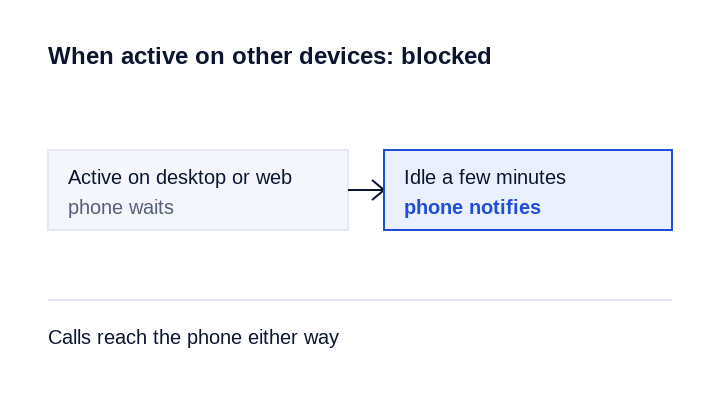
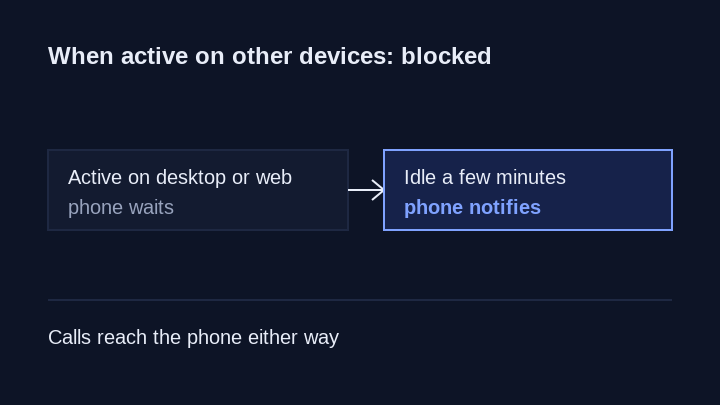
| The phone notifies only after a pause at your desk | The "When active on other devices" block is on: mobile notifications start after a few minutes of inactivity on web or desktop. | Check whether the block is turned on in your mobile notification settings. |
| The phone shows nothing at all | The permission was skipped at first launch or switched off in the device's Settings app. | Check the notification permission for Teams in the device's Settings app. |
| Android notifications stop or arrive unreliably | Battery optimization can stop Teams from sending notifications (documented for Android 6.0.1 and for some phone models, such as OnePlus on Android 8.0 or later). | Open Settings, then Battery, then Battery Optimization, then All apps, then Teams, and choose Don't optimize. |
The rows come from Microsoft's "Manage notifications in Microsoft Teams" page (page dated October 30, 2026) and its mobile troubleshooting page (page dated March 3, 2026).
What should I check first on a Mac?
Start with the macOS permission. Microsoft's page says Teams leverages the macOS notifications system for chat, channel, mention and app notifications, so you need to enable notifications at the OS level first. Then work down this order:
- Confirm Teams is allowed to notify in macOS, then send Teams' built-in test notification. If nothing appears, the page tells you to check that Teams notifications are enabled in macOS and that Focus Mode is off.
- If you use Focus or Do Not Disturb, add Teams to Allowed Apps. The page says you need to do this individually for each Focus scenario.
- If your Mac is connected to an external display or dock, open the Notification Center. By default, notifications land only there.
- For a silent meeting chat, check whether you accepted the invitation. Chats for tentative or unanswered invitations are muted until you join or send a message.
The second step explains a mismatch you may notice. Calls, requests to join and meeting-start notifications do not depend on the OS-level settings, so a call can ring while the chat that came before it stayed quiet. For how Teams sorts muted chats, see Teams muted chats and meeting chats sections.
What should I check on my phone?
Check the device permission first, then the setting that waits for desktop inactivity, then on Android the battery optimization. Microsoft's mobile troubleshooting page covers all three.
- Open the device's Settings app and check the Teams notification permission. The page says Teams asks for permission on first launch, and you may have skipped it or turned notifications off later.
- Look at the "When active on other devices" block. Notifications are on by default whether or not you are active on desktop or web. With the block turned on, you start receiving mobile notifications once Teams detects you have been inactive on web or desktop for a few minutes. Call notifications are sent to mobile even if you are active on desktop.
- On Android, make sure battery optimization is not preventing Teams from notifying you. The documented path is Battery, Battery Optimization, All apps, Teams, Don't optimize.
The page ties its Android guidance to Android 6.0.1 and to model-specific settings (Samsung, OnePlus, Huawei, Xiaomi and others). For current Android versions in general it only covers the permission check. For iOS it has nothing on battery or Background App Refresh.
Should I clear the Teams cache to fix late notifications?
No. Microsoft Learn's page on clearing the Teams cache (page dated September 14, 2026) says Microsoft does not recommend it for issues such as missing messages, a channel not appearing, or notifications and unread counts being wrong.
Its reason is practical: clearing the cache does not fix these issues, and it deletes the diagnostic logs needed to find the cause. The page covers Windows and macOS only and has no steps for a phone or the browser.
What do Microsoft's pages not explain?
The pages we read leave out several things you might expect. If a delay survives the checks above, these are the gaps:
- No section on Windows Focus Assist or other Windows notification settings.
- Nothing on how your own presence status (Do not disturb, Busy, Away) affects banners or sounds. The presence section covers only alerts about other people's status.
- No iOS guidance on battery, Background App Refresh or Low Power Mode.
- Nothing on service outages, push-service problems or admin policies.
- No measured or typical delay for a late notification.
If every check above comes back clean, take it to your admin or Microsoft support. These pages cannot answer it. For the Outlook side of the same problem, see Outlook notifications not working in new Outlook.
Before you try another inbox tool
Both usual objections have short answers. On privacy: message content is scrubbed of personal data before anything reaches an AI provider, and Nolario never sends a message by itself. It drafts, and you press send.
On "yet another tool": Nolario connects the accounts you already have, and nothing moves. It does not replace the Teams, macOS, Android or Outlook settings described above. If Focus or battery optimization blocks a Teams banner, those settings are still where you fix it. See the integrations page for what connects today.
Where Nolario fits
Nolario pulls Teams chats into one feed next to your Outlook mail, scores each item for importance and ranks the feed, so a client chat sits in the same list as the client's email. That works for work and school accounts only, because Microsoft Graph does not expose chats for personal Microsoft accounts. It does not change how or when Teams notifies you, and it does not fix a blocked banner. For a routine that covers all your channels, start with how to check Gmail, Slack and Teams without missing a client, and for a deadline that slips between the two, see how to keep Outlook and Teams from burying a deadline.
