

If one client's mail must never sit unnoticed while Outlook runs in the background, new Outlook for Windows now has a rule action for it. Two entries on Microsoft's roadmap describe rules that show a desktop alert or play a sound when mail from a specific person arrives. Below are the steps, which platform has which action, and the places where even a correct rule stays silent.
A note on sources: we read the two roadmap entries through mc.merill.net, a mirror of Microsoft's public roadmap, not on Microsoft's own roadmap site. The how-to steps come from Microsoft Support. When we read the support page on rules on 2026-11-26, it described the name, condition and action structure of a rule, but it did not list the names "Display a Desktop Alert" or "Play a sound". Those names appear only in the roadmap text, so your menu may word them differently.
How do I set up a desktop alert rule for one sender in new Outlook?
Create a rule in new Outlook for Windows, set the condition to your client's address, add the Display a Desktop Alert action and save. Microsoft Support describes the quick way below. We added only the sender and action wording from the roadmap.
- Find a message from the client in your message list, right-click it, hover over Rules and select Create rule.
- Select More options to open the full rule settings.
- Give the rule a name. Microsoft says every rule needs at least a name, a condition and an action.
- Set the condition to the client's email address. The support page does not show the exact label of the sender condition, so look for the option that matches the sender. The roadmap text says rules can match mail from a specific person.
- Choose Add an action and pick Display a Desktop Alert. This is the label in Microsoft's roadmap entry 496141. Add a condition and Add an exception let you narrow the rule further.
- Select Save.
To change the rule later, go to Settings, then Mail, then Rules, and use More actions (⋯) and Edit rule. If you have no message from the client in the list yet, rules live on the Rules page under Settings. The support page does not name the first button for creating one from there, so we will not guess it.
Which Outlook platforms have the desktop alert and sound actions?
Roadmap entry 496141 lists Desktop and Web, and entry 497836 lists Desktop only. Both show Launched and both describe new Outlook for Windows. Read the table as what the sources say, not as a feature test.
| Feature | Roadmap 496141 | Roadmap 497836 |
|---|---|---|
| Action named in the text | Display a Desktop Alert | Play a sound or show a desktop alert |
| Sender condition mentioned | Specific emails, no sender named | Yes, a specific person |
| Platforms listed | Desktop, Web | Desktop |
| Status | Launched (General Availability) | Launched (General Availability) |
| Last updated | Nov 25, 2026 | Nov 25, 2026 |
Roadmap entry 496141, last updated Nov 25, 2026, says: "Create rules that trigger a desktop alert when specific emails arrive." Entry 497836, also updated Nov 25, 2026, adds the sound and names the sender case: rules can play a sound or show a desktop alert when a matching email arrives, whether it is from a specific person or another condition.
Three points remain unclear: web availability, the launch date and the sound setting.
- Web. 496141 lists Desktop and Web, but both texts carry the hashtag #newoutlookforwindows and describe the Windows app. It is unclear whether the alert action exists in Outlook on the web. The sound action does not list Web at all.
- The date. Both mirrored entries show "GA date: January CY2026", yet the version history shows the status changing to Launched on Nov 25, 2026. No page we read gives an actual launch day.
- The sound. Nothing we read says whether new Outlook has its own sound switch or uses the Windows sounds.
Why does my Outlook rule fire but I still see no alert?
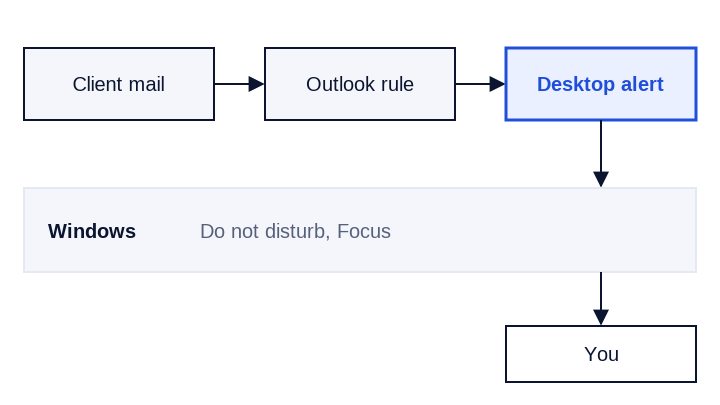
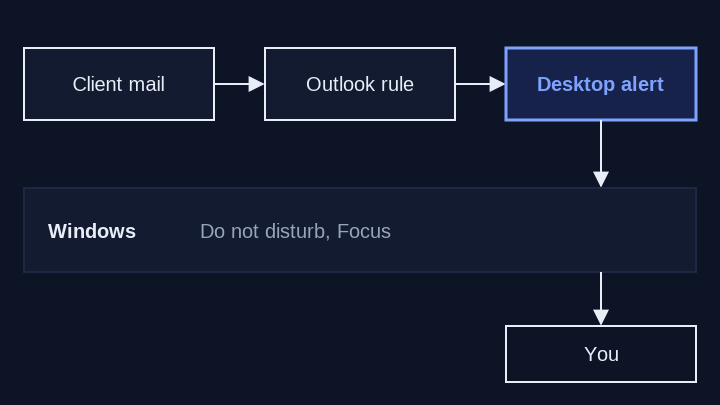
Check the Windows notification settings. If the alert does not show up, Microsoft Support's troubleshooting page for Outlook notifications, read on 2026-11-26, lists the Windows settings that can stop Outlook notifications. The page covers Outlook notifications in general and does not mention rule alerts specifically.
On that page, Microsoft says to confirm that "Get notifications from apps and other senders" is On, that Do not disturb is Off, and that Outlook is turned on in the list of senders. It also says your Teams status must not be Do not disturb. Battery Saver Mode can temporarily disable notifications, Windows focus and Quiet Hours can suppress notifications and sounds, and an administrator can turn notifications off as well. For a longer walk through each setting, see Outlook notifications not working in new Outlook.
What will an Outlook rule still not alert me about?
Four gaps stay open. New Outlook does not currently support rules for Gmail, Yahoo or iCloud accounts, some rules migrated from classic Outlook do not run, we found no rule page for alerts on the phone, and the sources say nothing about channels outside Outlook. The points below give the source for each gap, or note that we found none.
- Third-party accounts. Microsoft Support: "Currently, new Outlook does not support rules for managing third-party accounts like Gmail, Yahoo, and iCloud." For a Gmail inbox, see Get notified when a client emails: Gmail and Outlook. You can also look at adding a Gmail account to Outlook for Windows, though nothing we read says whether that gives you a per-sender alert.
- Old rules. Microsoft says new Outlook cannot process some rules created in classic Outlook because they are client-side rules. Its fix is to create a new rule to replace the migrated one. We could not open the classic Outlook actions page, so we do not claim which actions classic offers.
- Your phone. The only phone setting we found on Microsoft Support is Favorite People Only, set per account under App Settings, then Notifications, in Outlook for Android and iOS. It limits notifications to your favorite people. It is not a rule that alerts on one sender, and we found no page about sound or alert rules on mobile.
- Teams and Slack. None of the pages we read say anything about messages outside Outlook. A rule in Outlook watches Outlook. Teams has its own settings, described in Microsoft Teams notification settings for channels, presets and pause.
What is a sensible routine for one client who must never be missed?
Set the rule, then check the three things that can silence it. This is our suggestion, not something Microsoft prescribes.
- Create the sender rule with the Display a Desktop Alert action and save it.
- Create a second, temporary rule for a colleague's address and ask them for a short test mail, so you see what the alert looks like on your machine. We have not tested this ourselves. Delete the test rule afterwards.
- Open the Windows notification settings once and confirm Do not disturb is off, Outlook is in the sender list and Battery Saver is not active.
- If the client also writes in Teams or Slack, decide separately how those arrive. The rule will not cover them.
- Recheck the rule after any move from classic Outlook, because client-side rules may not carry over.
For the wider problem of mail, chat and calendar competing for your attention, the pillar post is How to check Gmail, Slack and Teams without missing a client, and how to keep Outlook and Teams from burying a deadline covers the deadline case.
Where does Nolario fit next to an Outlook rule?
An Outlook rule only watches Outlook. Nolario is a different kind of tool: it pulls Gmail, Outlook, Slack, Microsoft Teams and Google Calendar into one feed, scores every message for importance from 0 to 100 and ranks the feed so the important thing is at the top. It does not replace the rule, and it is not a notification engine.
It is a desktop web app. There is no mobile app, there is no shared queue, and access is by waitlist. We also do not claim it alerts you when the app is closed. As our product note says: Nolario never sends a message for you. It drafts; you press send. The integrations page lists what connects today.
Before you try another inbox tool
Two objections come up. On privacy: message content is scrubbed of personal data before anything reaches an AI provider, and Nolario never sends a message itself.
On "yet another tool": Nolario connects the accounts you already have, so nothing moves. It does not replace Outlook, Teams, your rules or your Windows notification settings. If one sender in one Outlook account is all you need, the rule above is enough. If the same client reaches you across several channels, the free tools at /tools and the pricing page show whether a ranked feed is worth a look.
